

















Duplicate Candidate Detection
Detect, review, and resolve duplicate candidates before they clutter your database
5 min Read
- Automatically flag duplicate candidates during batch uploads, ATS sync, and Chrome extension imports before they enter the database.
- Compare field-level differences between the new upload and the existing profile before confirming a merge, with full resume comparison available inside the Duplicates tab.
- Merge duplicates into an existing profile combining history, notes, and tags, or add as a new independent candidate based on recruiter judgment.
- Track all flagged and resolved duplicate cases from a dedicated Duplicates tab inside the Candidates page across three views: In database, From uploads, and Resolved.
Catch Duplicates Before They Enter
Skima AI now automatically detects possible duplicate candidates and flags them for recruiter review before they are added to the database. When an uploaded resume matches an existing candidate by phone no. , LinkedIn URL, or a combination of name, location, and company, Skima AI surfaces the match and lets the recruiter decide what to do with it.
Recruiters can either merge the new record into the existing candidate profile, combining history, notes, and tags, or add it as a separate new candidate if the profiles are genuinely different people.
Batch Upload Inside a Job
Go to 'Jobs' and open any job
Click on the upload icon to upload resumes
Once files are parsed, a Review possible duplicates section appears inside the upload modal
Each flagged candidate shows the new upload alongside any matching profiles already in your database
Select the flagged candidate and select the existing database profile to match against
Click on Merge to open the field comparison modal, which shows differences across name, title, company, phone no. , and LinkedIn between the two records.
Select which values to keep and click on 'Merge' records to confirm
Or click on 'Add as new' to add the uploaded resume as a separate independent candidate
Click 'Resolve all' to finish once all duplicates are reviewed
Note: Only the field comparison modal is available during the merge flow. Viewing and comparing full resumes side by side is additionally available inside the Duplicates tab on the Candidates page.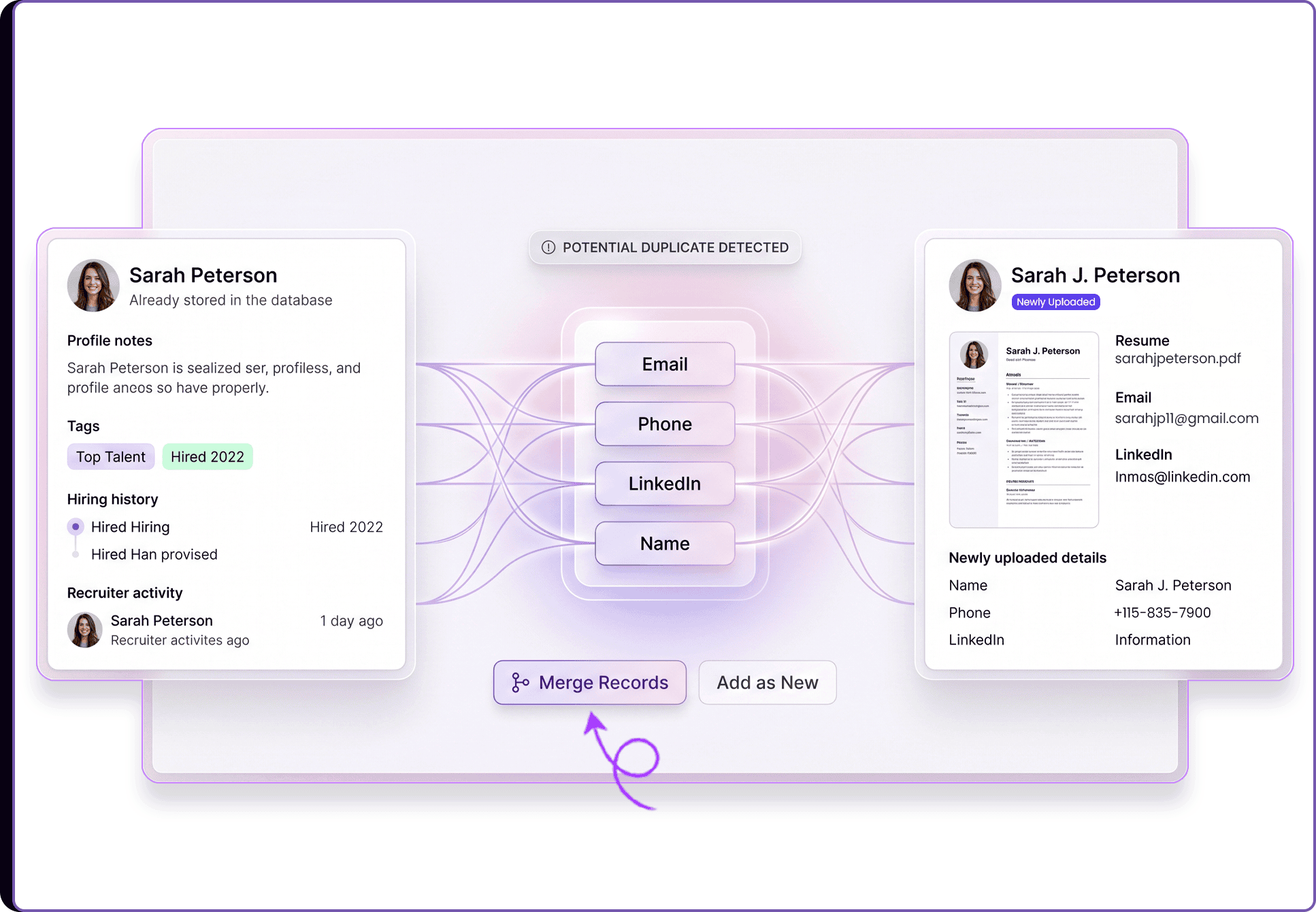
From the Duplicates Tab
Go to 'Candidates' from the left sidebar
Click on the 'Duplicates' tab at the top
Use the three sub-tabs to navigate:
In database - duplicates detected through ATS sync or Chrome extension imports
From uploads - duplicates flagged during manual batch uploads inside jobs or the Candidates page
Resolved - a log of all duplicate cases already handled, showing whether each was merged or added as newClick on the resume icon next to any flagged candidate to open and review their full resume before taking action
Select the duplicate profile and existing database profile to merge into together
Click on 'Merge' to open the field comparison modal, review the differences, and confirm with Merge records
Or select only the duplicate profile and click 'Add as new' to create a separate candidate entry
Review and Resolve With Full Context
When Skima AI detects a possible duplicate, it groups the new upload alongside every matching profile already in the database. Matching is based on a combination of signals including email, phone number, LinkedIn URL, or name paired with location and company. If two or three existing records share the same signals, all of them appear so the recruiter can choose the right one to merge into, or decide to keep the new upload as a separate candidate entirely.
Note: If an exact email match is detected, Skima AI automatically merges the record into the existing profile without requiring recruiter action.
Inside the Duplicates tab, recruiters can open and compare full resumes in Skima AI itself or by opening the resume in a new tab before deciding. When merging, a field comparison modal highlights differences across name, title, company, phone, and LinkedIn so recruiters can choose which values carry forward into the merged record. Merging combines the records into the primary profile, carrying over notes, history, and tags. Adding as new creates an independent candidate entry.
For uploads done directly inside a job, screening begins immediately after the duplicate is set as new. For candidates added through the Candidates page without a job link, they are added to the database first and screened once linked to a job. All resolved cases are logged under the Resolved tab for reference.
Keep Your Database Clean at Scale
Duplicate records slow down screening, create confusion during pipeline review, and make candidate data harder to trust. This update gives recruiters a clear decision point every time a potential duplicate enters the system, so the database stays accurate without requiring manual audits.
For high-volume hiring teams managing uploads across multiple jobs and ATS sources, this means cleaner candidate lists, more reliable search and rediscovery results, and less time spent untangling duplicate profiles later in the workflow.